Pick & Run the Right Printer Test in One Click
Use these printer test pages to check ink, toner, color, and alignment. Select a test below to open its print-ready PDF instantly:
Black and White Test Page
Color Printer Test Page
CMYK Test Page
Printer Alignment Test Page
All pages are sized to the ISO 216 A4 standard.
What Is a Printer Test Page?
A printer test page is a pre-formatted diagnostic PDF that checks a printer’s ink or toner, black-and-white and color printing, CMYK balance, graphics, text, lines, nozzle or printhead performance, and alignment. Unlike a normal document, print test pages use deliberate patterns to reveal blocked nozzles, faded ink, streaks, and misaligned text, lines, colors, or graphics before they affect your important printed pages.
How to Print a Printer Test Page (Simple & Quickest Tutorial)
Here are four ways to print a test page. Use our PDFs, a computer, or the printer itself.
Prepare Before Testing
- Check ink or toner levels and replace low cartridges.
- Connect the printer by USB or Wi-Fi.
- Load clean A4 paper and print at 100% scale.
Print Page Test Online (Fastest Way)
Click any download button given above or below, open the PDF, press Ctrl + P on Windows or Cmd + P on Mac, select your printer, and click Print. No software, registration, or watermark is required.
Print a Printer Test Page From a Computer (Windows or Mac)
On Windows 11/10: Settings > Printers & scanners > select your printer > Manage > Printer properties > Print Test Page.
On Mac: System Settings > Printers & Scanners > select your printer > Options & Supplies > Utility > Print Test Page. Options vary by driver.
Print Without a Computer (Built-In Printer Panel)
Many HP, Canon, Epson, and Brother printers offer a built-in quality report or nozzle check. Use their control panel :
- HP: Setup > Reports > Print Quality Report.
- Epson: Setup > Maintenance > Nozzle Check.
- Canon: Setup > Maintenance > Print nozzle check pattern.
- Brother: Ink Management > Improve Print Quality.
Menu names vary by model.
Types of Printer Test Pages: Choose Your Pattern
Each page below works as a one-click printer quality test page across major operating systems and printer brands, with direct Print or test print PDF options.
Black & White Printer Test Page
Use this printer test page black-and-white pattern to check black text sharpness/quality, gray areas, streaks, horizontal banding, and weak toner or ink coverage. Best for standard office documents, black-only printers, and basic print-quality checks.
Black printer test page
Print a solid black sheet to see missing areas, streaks, or uneven coverage with the all-black print test page.
Document Test Page
Prints plain text and Lorem Ipsum to check text readability, spacing, alignment, and how cleanly your printer handles a normal word/pdf document.
Grayscale Test Page
Prints shades from black to light gray to check smooth gradients, even shading, and consistent midtones. Best for checking grayscale photos, laser output, and inkjet shading.
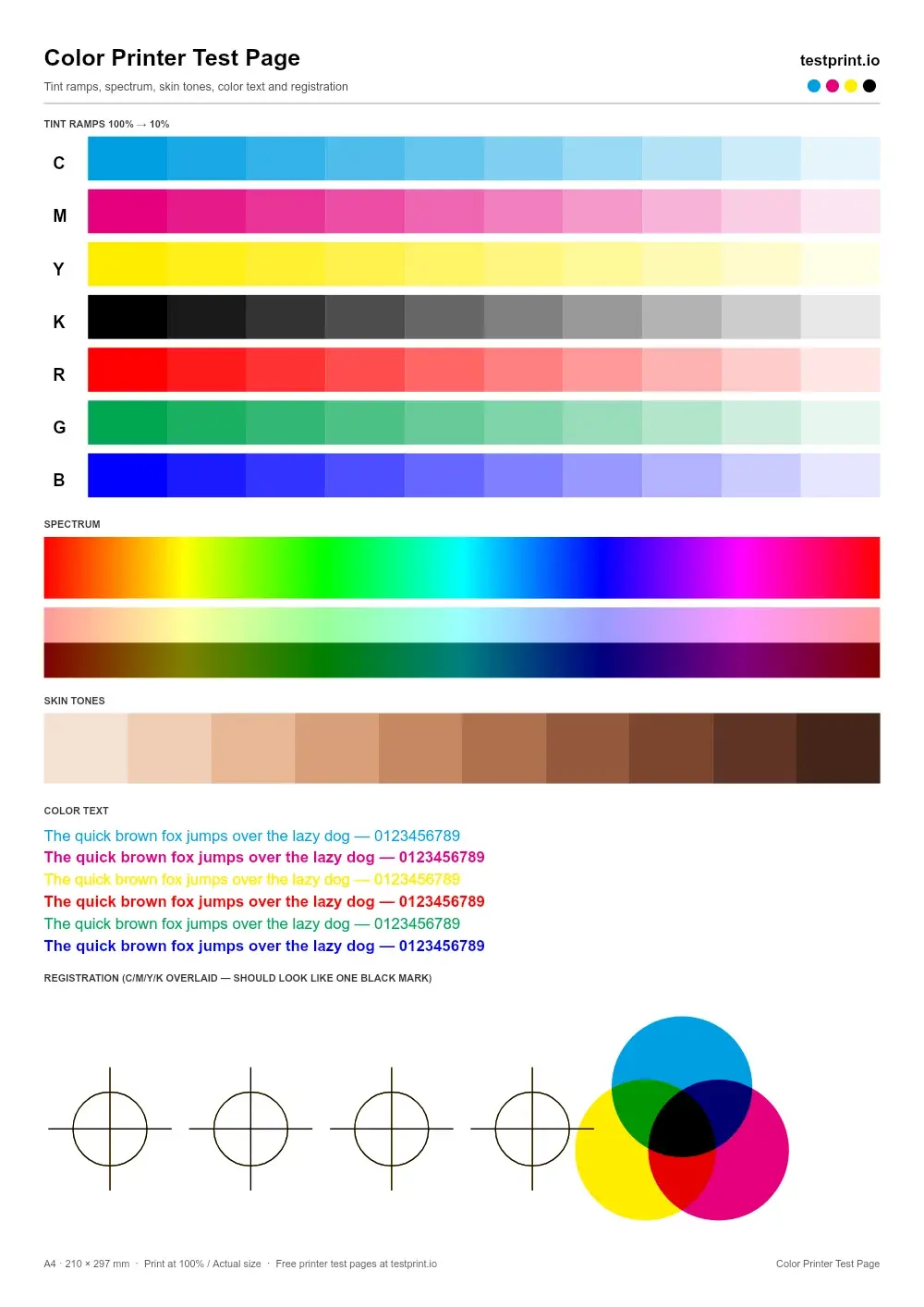
Colour Printer Test Page
This printer color test page checks color blocks for faded colors, wrong tones, contamination, or poor saturation. Best for finding color problems before printing photos, graphics, or important documents.
RGB Print Test Page
Use this color test page for photo printers to check whether red, green, and blue print with the right balance.
Blue Color Test Page
Print this when blue looks faded, dull, or uneven and you need to check blue ink coverage.
Red Color Test Page
Use this when reds look weak or inaccurate, and you want to check rich, even red output.
Green Color Test Page
Print this when green shades look wrong, faded, or uneven, and you need to check green color pop.
Rainbow Print Test Page
Use this rainbow printer test page when several colors look off, and you want to check blending and saturation together.
Color Wheel Test Page
Use the wider range of shades to spot subtle color shifts and check printer calibration.
CMYK Test Page: Four-Channel Ink Check
Print separate cyan, magenta, yellow, and black blocks to find the exact color that is weak, missing, or clogged. Best for cartridge problems, blocked nozzles, and targeted ink troubleshooting.
Full Cyan Test Page
Use this when cyan looks faded or missing to check bright, even cyan coverage.
Magenta Test Page
Apply this test when magenta looks weak or disappears from prints to check cartridge output.
Yellow Test Page
Verify vivid, even yellow with this yellow printer test page.
Printer Alignment Test Page to Check Print Position on A4
Use grids and borders to find crooked text, shifted printheads, or margins that print unevenly. Best for fixing alignment after installing, moving, or servicing a printer.
Alignment Grid Test Page
Use this structured grid page as it makes skewed lines and misaligned printheads easy to identify.
Test Print Lines Page
Fine lines running horizontally and vertically reveal banding, broken lines, and printhead misalignment.
Specialized Printer Test Pages (With Image & Photo Tests)
For photos, packaging, and production work, these check resolution, detail, and color.
High Resolution Color Test Image
Use this high-resolution color printer test page when prints look blurry or lack fine detail.
Color Photo Print Test
This detailed photo print tests skin tones, gradients, shadows, and smooth color transitions.
Colorful Image Test Page
Use this vibrant test print page to check contrast and bright, saturated tones in a busy image.
DTF Color Test Print
Designed for direct-to-film printers to test transfer colors, consistency, and overall color reproduction.
6-Color Epson Test Print
Use this Epson printer test page to check CMYK, light cyan, and light magenta on six-color Epson photo printers.
Laser Printer Test Page
Use this when laser prints look soft, smudged, or uneven to check text sharpness and toner spread.
Pantone Test Print
Use this for professional color work when you need to compare printed shades against specific Pantone colors.
Read Your Printer Test Results: Fast Diagnosis
Use these printer test results to identify print quality problems and pinpoint the likely cause.
Printer Diagnostic Test Matrix
| Test results | Likely cause | Test to use | Fix |
|---|---|---|---|
| Breaks in text or color | Clogged printhead nozzle (inkjet) | CMYK Test | Clean the printhead |
| Light or faint print | Low ink or toner, eco mode on | High-Density B&W Test | Replace cartridge or disable draft mode |
| White streaks, missing lines | Blocked nozzles, dirty rollers | Printhead Test (From PC or printer’s panel) | Run deep cleaning and clean rollers |
| Shifted or wrong colors | Misaligned cartridges, calibration error | Color Test | Align the printhead and calibrate |
| Blurry or doubled text | Printhead misalignment | Alignment Test Page | Run an alignment test |
| Black spots, lines across page | Dirty or damaged drum (laser) | Black & White Test | Clean or replace the drum |
| Symbols or no print | Corrupt driver, spooler, or connection | Printer Test Page | Reinstall the driver and check USB/Wi-Fi |
Note! Run a printer quality test from the printer's own menu too. A defect on that print quality test page means hardware, while a fault only from Word or PDF points to drivers. Any printer diagnostic test is a guide, so check your manual for model-specific steps or see troubleshooting steps below for details.
Printer Brands and Compatibility
Our test page for printers works across inkjet, laser, color laser, photo, and thermal printers. Supported platforms include Windows, macOS, Linux, ChromeOS, Android, and iOS. Here are popular printer brands:
Identify & Troubleshoot Common Printer Problems
The matrix above covers faded prints, streaks, wrong colors, and blurry text. These problems need separate checks:
Crooked Prints and Paper Jams
Load paper straight, select the correct size, and inspect feed rollers for dust or wear.
Blank Pages
Check the cartridges and driver first. Remove any leftover cartridge tape, too. A blank self-test page points to a hardware failure that may require service.
Ink Bleeding or Feathering
Ink spreads when the paper cannot absorb it properly. Use suitable paper and select the matching media type in the driver.
Toner Smears or Rubs Off
Loose toner usually points to a laser fuser or paper issue. Use laser-rated paper, then replace the fuser if the toner still wipes off.
Patchy Fills, Gray Haze or Clipped Margins
Blotchy or hazy solids can indicate contamination or a weak cartridge. Clipped edges usually come from scaling, so disable Shrink to Fit.
Printer Prints Test Page but Nothing Else
If your printer prints a test page from our site but nothing else, the hardware is working. The problem is likely the queue, spooler, driver, or application. Here's what to do:
- Restart Print Spooler: Press Windows + R > type services.msc > Print Spooler > Restart.
- Clear print jobs: Open the print queue and cancel stuck documents.
- Set as default: Go to Settings > Printers & scanners > select your printer > Set as default.
- Reinstall the driver: Download the latest driver from the manufacturer.
- Test Notepad: Print a simple document from Notepad.
- Check the connection: Confirm the USB or Wi-Fi connection and the printer's IP address, clear offline status, then restart the printer and PC.
When to Use a Printer Test Page: Common Use Cases
Run a test printer page when quality is in doubt. Choose Black & White or Color, then print. Here are the key times to use our print test pages:
- Faded prints: Check for clogged nozzles before replacing ink.
- Before card stock or photo paper: Confirm proper feeding and print quality.
- After moving the printer: Check printhead alignment.
- For text quality: Use the Lorem Ipsum page to check text sharpness.
How to Improve Printer Print Quality (Maintenance Tips)
Most print quality problems come from poor maintenance, not broken hardware. These six habits catch problems early, so your next test page comes out clean.
Keep Printheads and Nozzles Clean
Run the built-in cleaning routine when a test shows gaps, and wipe printheads with a maintenance kit. Limit cleaning to two runs.
Check Ink and Toner Levels
Replace cartridges at low ink warnings, because low supply can cause fading and color shifts before printing stops. Print a test page after installing new cartridges to check full, even coverage.
Use the Correct Paper and Print Settings
Match the driver's paper type to the loaded paper, use 80gsm or heavier paper, and avoid Draft or Eco mode.
Run Alignment and Calibration Tests
Print the alignment grid after moving the printer or replacing cartridges, then apply the calibration results.
Print Regularly When the Printer Is Rarely Used
Print one test page weekly to keep ink flow steady. After two weeks unused, print test page to check for dried ink or blocked nozzles.
Keep Drivers and Printer Software Updated
Install the latest drivers and firmware from the manufacturer's site.
Why Use xyz.com Instead of Built-In Printer Settings?
Built-in test pages are basic and brand-specific; here’s how xyz.com stands out:
Variety of One-Click Printing Tests
No driver menus to dig through for B&W print tests or color or CMYK test pages.
Printer Test Page PDF
Download a color printer test page PDF, plus other versions, for offline printing tests anytime.
Universal Compatibility
Our printer test pages work across desktop, laptop, Chromebook, or phone and with any printer’s brand or model.
Hardware vs Software Faults
Our standard pages bypass Word formatting, helping separate driver glitches from hardware faults before you replace ink you don't need to.
Pro-Level Printer Diagnostics
Spot alignment, color shifts, and nozzle issues faster with our printer tests of all types.
Conclusion
Run a printer test page before faded text, streaks, or wrong colors waste ink and paper. Use the printer test page color option to check every channel, match results to the table above, and fix the cause. Choose a test above and print it now, free.
Faqs
How do I print a printer test page?
Click any test button on this page, open the PDF, press Ctrl+P (Cmd+P on Mac), choose your printer, and click Print.
How do I print a test page on an HP printer?
On the printer, open Setup > Reports > Print Quality Report. On Windows, open Printers & scanners > your HP > Printer properties > Print Test Page.
How do I print a test page on an Epson printer?
On the printer, open Setup > Maintenance > Nozzle Check and select Print. Menu names vary slightly by model.
How do I print a test page on a Canon printer?
Open Setup > Maintenance > Nozzle Check, then confirm. Some older models word it "Print nozzle check pattern."
How do I print a test page on an Epson printer using Windows?
Open Printers & scanners > your Epson > Printer properties > Print Test Page. For a nozzle check, open the Maintenance tab in Printing preferences.
How do I print a test page on an HP 2700 printer?
Load A4 paper, hold the Power button, press Cancel, then release Cancel and Power. The HP DeskJet 2700 series has no menu, so this button combination is the built-in method.
What should a printer test page look like?
Text is sharp, color blocks are solid, gradients are smooth, and lines are straight, with no streaks, gaps, or tint. Windows pages also list the printer model, driver, and port.
What should an HP printer test page look like?
An HP print quality report shows status details and a solid color bar for each ink. White gaps or faded bars mean a clogged nozzle or low ink.
How do I read a printer test page?
Compare it with the diagnosis table above. Gaps point to clogged nozzles, faint areas to low ink or toner, and doubled text to misalignment.
How do I stop a printer from printing test pages?
Open the print queue and cancel all documents. Then restart the Print Spooler service and reinstall the driver if the page keeps printing.
How do I stop an HP printer from printing test pages?
Press Cancel on the printer, clear the queue under "See what's printing," then switch the HP off and on. Update the firmware if it continues.
Why does my printer print a test page but nothing else?
A working test page proves basic communication, so the fault sits in the queue, spooler, driver, or application. Restart the spooler, set the default printer, and reinstall the driver.
Which troubleshooting step involves restarting a printer and printing a test page after applying a solution?
Verify full system functionality. You confirm the fix worked by restarting the printer and printing a test page.
Why can an administrator print a test page during setup, but another user gets an "access denied" error?
Printer permissions are set per account. The administrator holds the rights, while the other user lacks Print permission. Grant it under Printer properties > Security.
How do I print a test page on Android?
Install your printer's app (HP Smart or Epson iPrint) or turn on Default Print Service in Settings. Open a test page PDF, choose your printer, and tap Print.